Web app | SinParty channel
Method 1. Manual Setup
Step 1. Log in to your SinParty model account and click the “Broadcast Yourself” button.

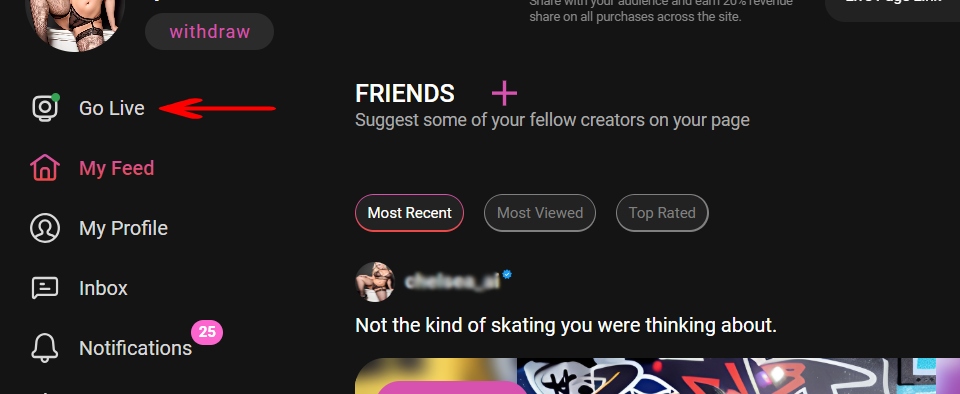
Step 2. In the main menu, click the “Go Live” button.
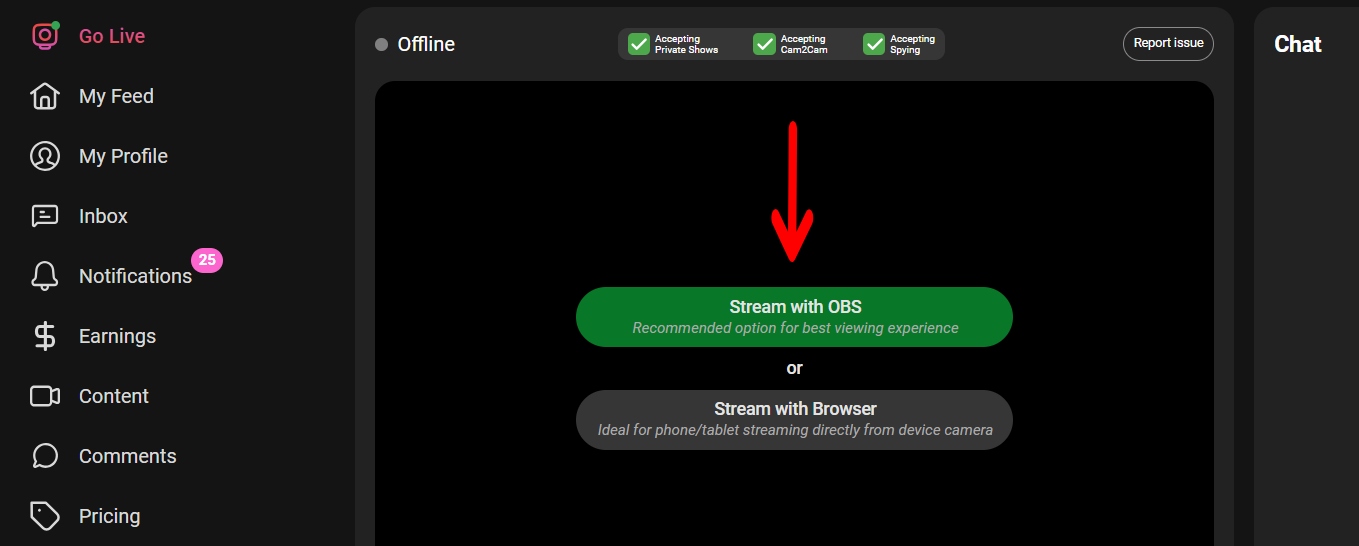
Step 3. Click the “Stream with OBS” button.
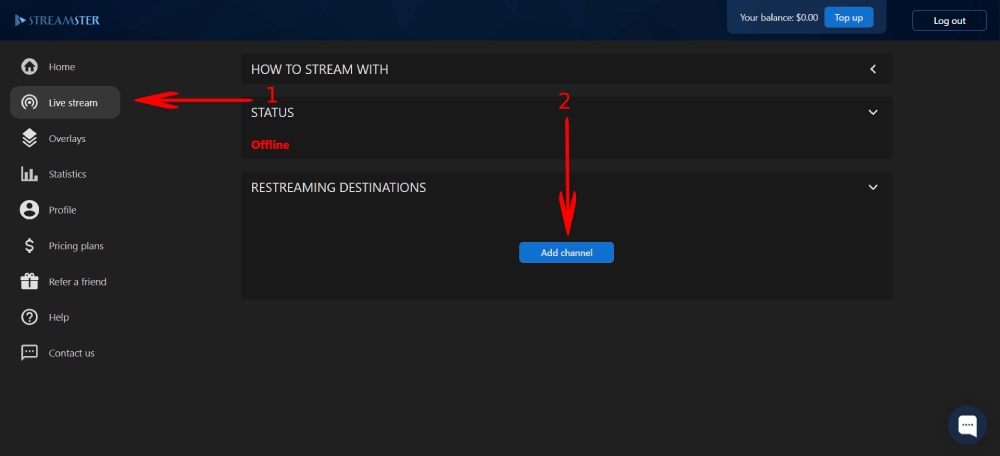
Step 4. In the Streamster web app, open the “Live stream” screen (1) and click the “Add channel” button (2).
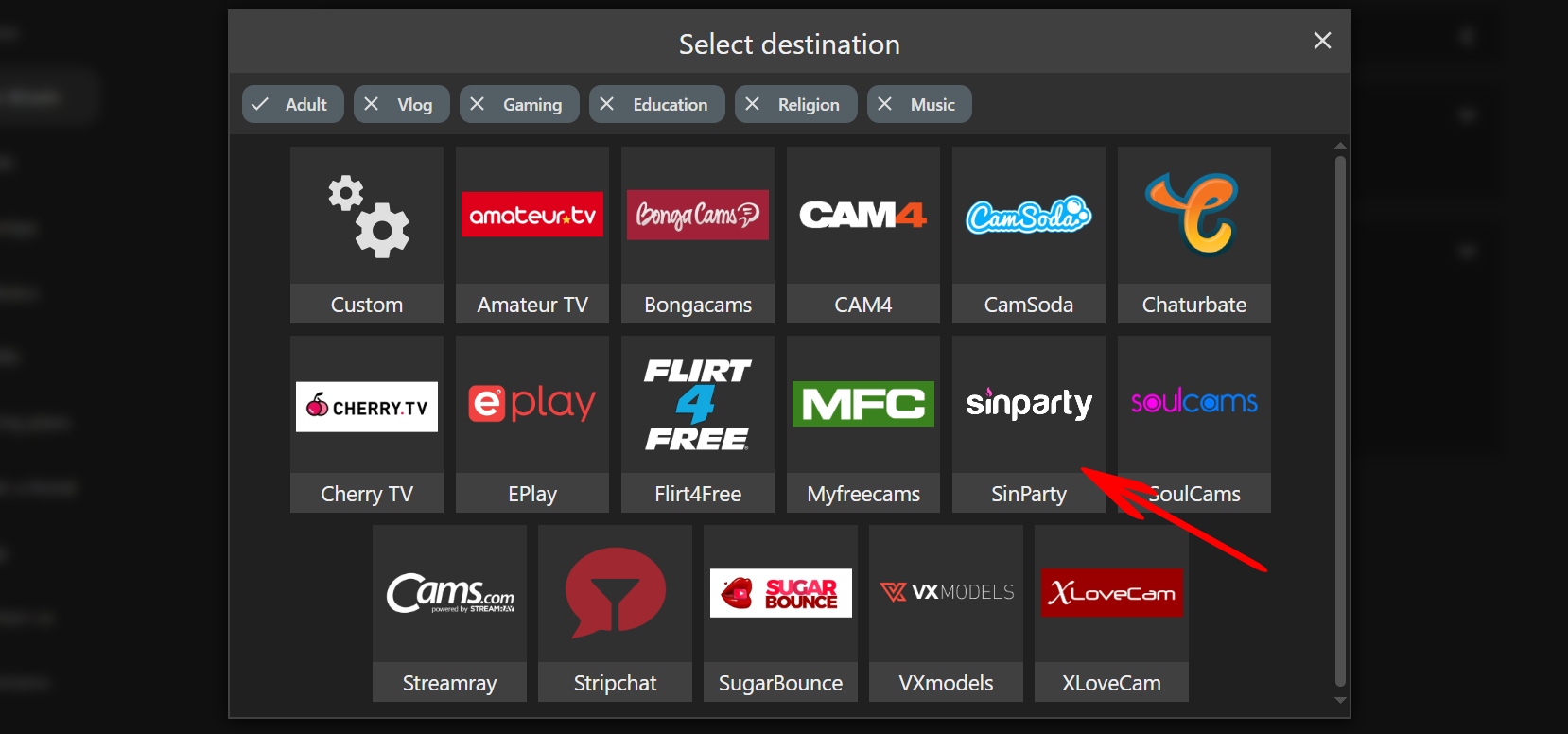
Step 5. Select SinParty from the list of streaming platforms.
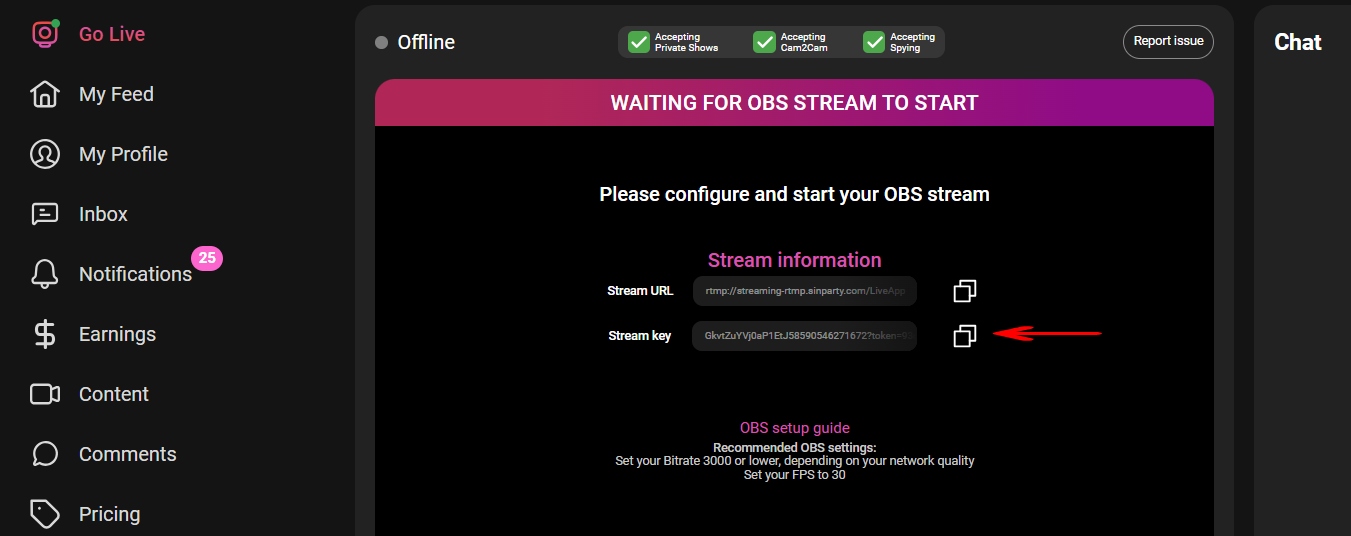
Step 6. On the SinParty website, copy the Stream Key.
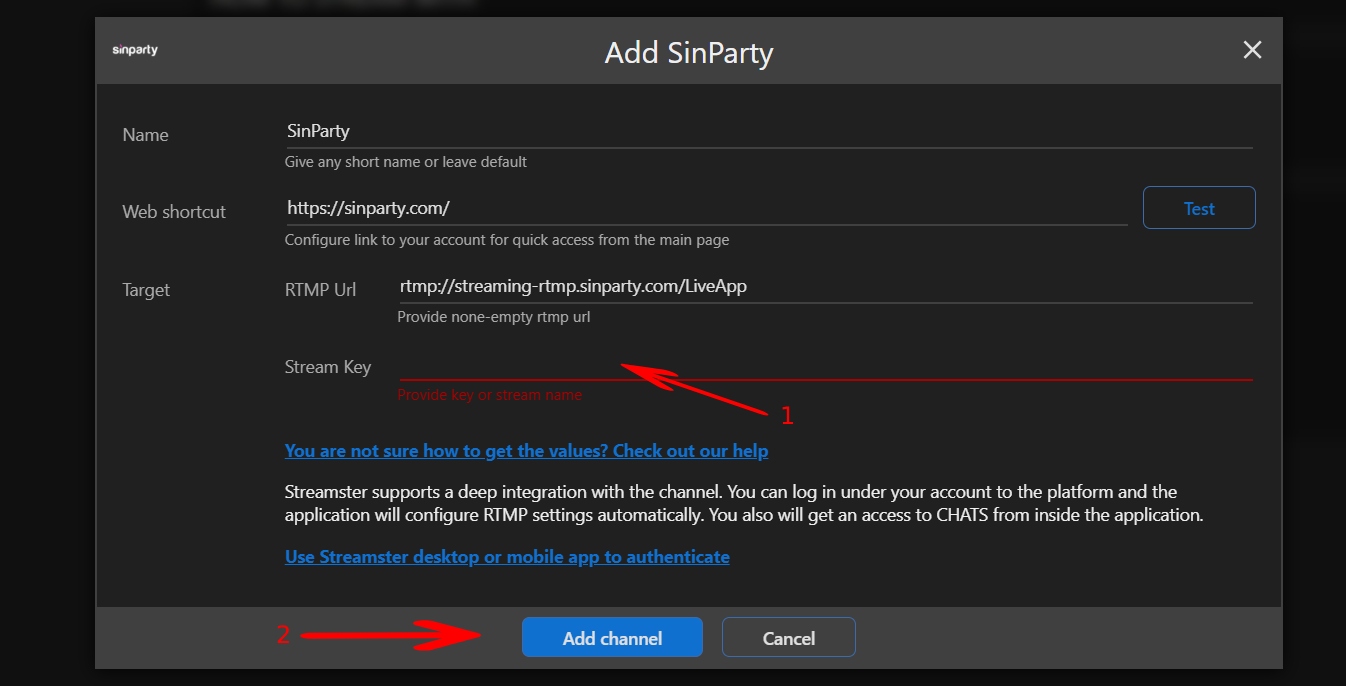
Step 7. In the Streamster web app, paste your Stream Key (1), and click the “Add channel” button (2) to complete your setup.
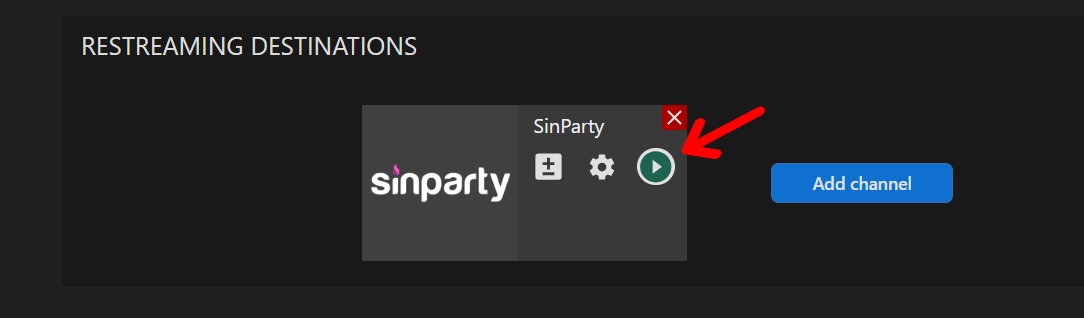
Step 8. Click the “Play” button to start your stream to SinParty.
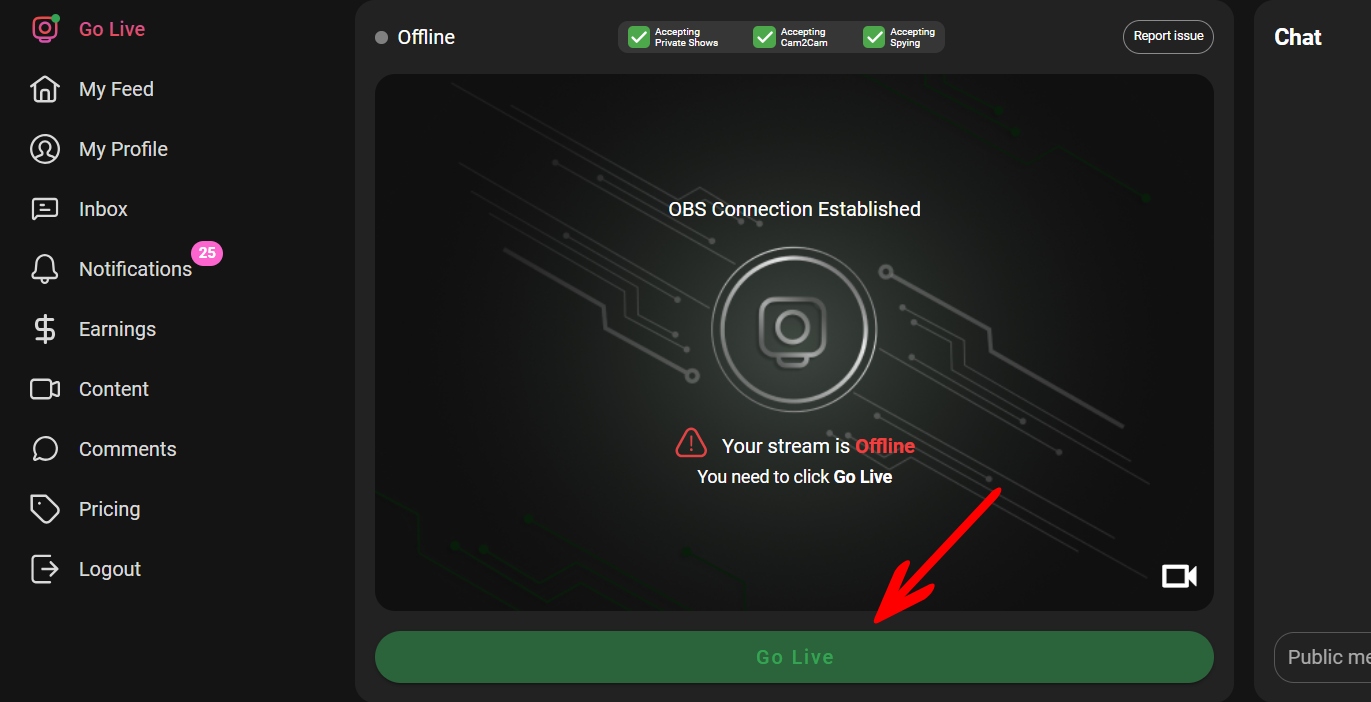
Step 9. On the SinParty website, click the “Go Live” button to make your stream public.