
Web app | LinkedIn channel
This feature is only available to members who meet the access criteria to create and host LinkedIn Lives. Trigger a review of your LinkedIn Page or Profile to check if you fulfill the criteria.
Step 1. Log in to your LinkedIn account
Step 2. Go to LinkedIn custom stream page.
Step 3. Under New stream, select Go live now.
Step 4. Under Create a post, select the profile or LinkedIn Page you want to stream to.
Step 5. Under Your stream details, add a Title for your stream.
Step 6. In the Stream settings tab, pick your region, then click Get URL.
Step 7. Copy the Stream URL and Stream Key.
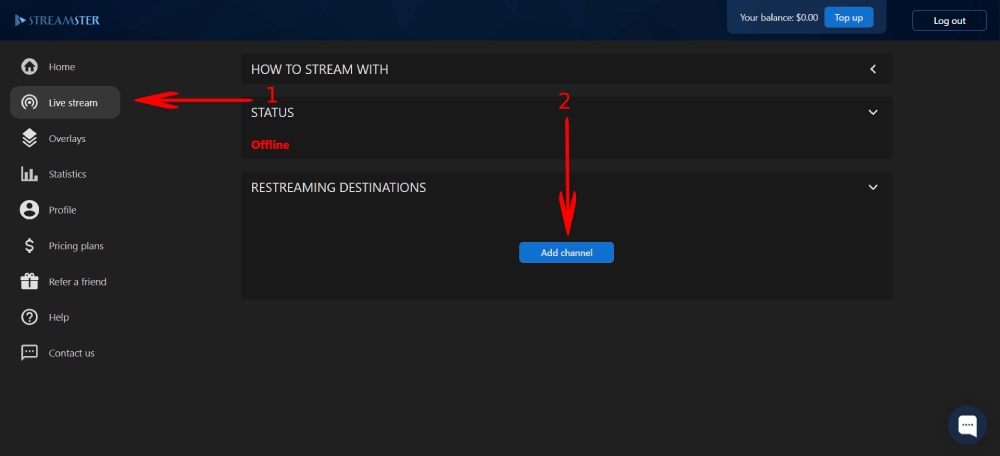
Step 8. In the Streamster web app, open the “Live stream” screen (1) and click the “Add channel” button (2).
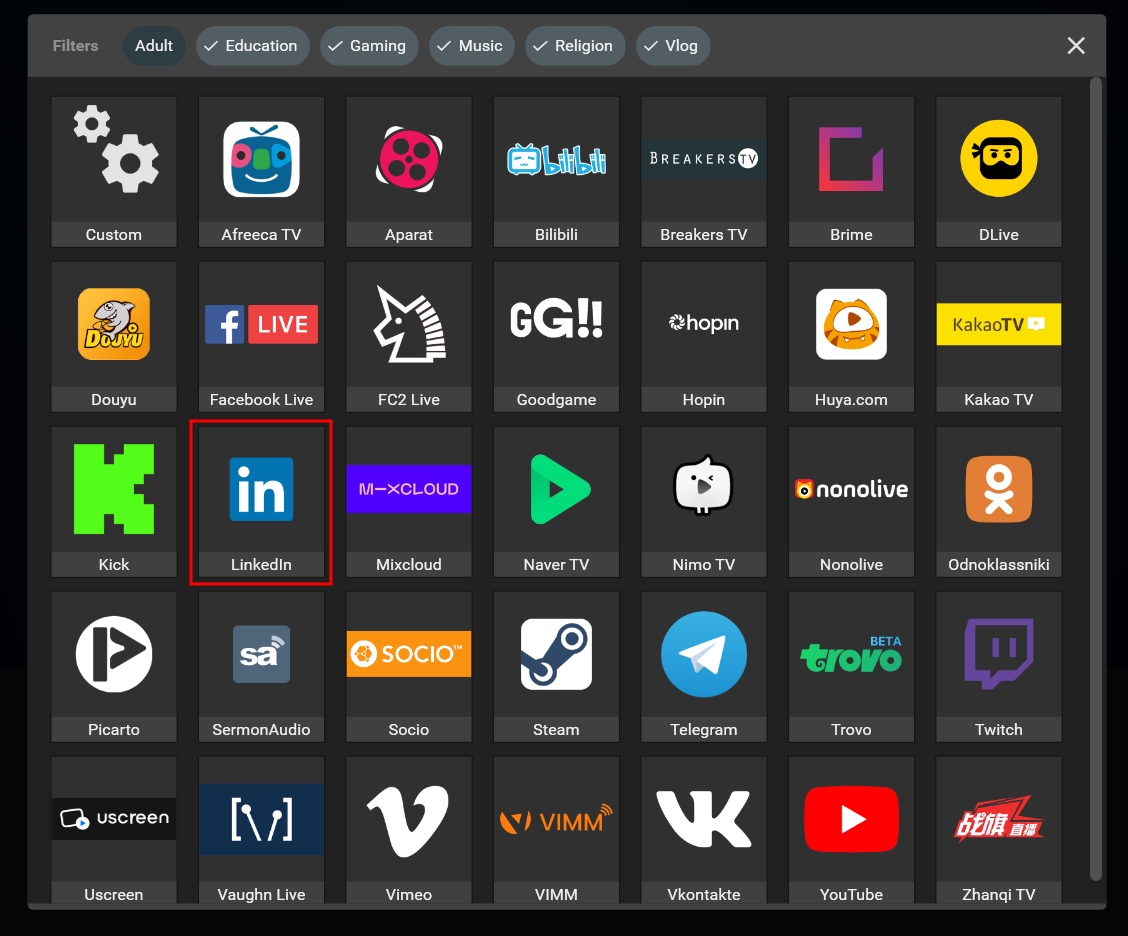
Step 9. Select the “LinkedIn” icon.
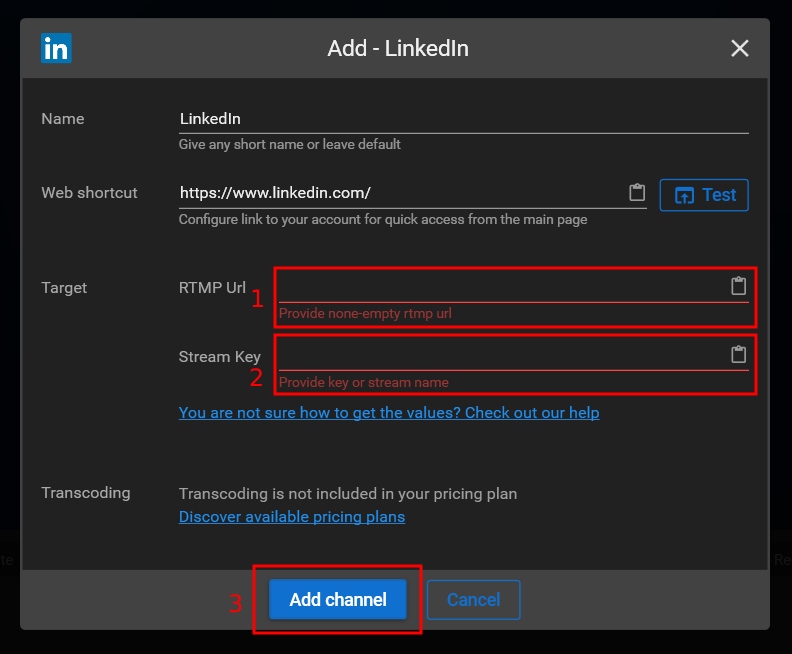
Step 10. Paste the Server URL (1) and Stream key (2). Then click the “Add channel” button (3).
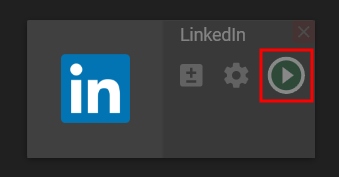
Step 11. Start your stream to Streamster server. Learn more.
Step 12. Start your live stream.
Step 13. Return to the LinkedIn website and click Go live in the upper right to publish your stream.