Web app | Eplay channel
1. Setting up an external encoder on Eplay
Step 1. Log in to your Eplay account.
Step 2. Click the “Go Live” button.

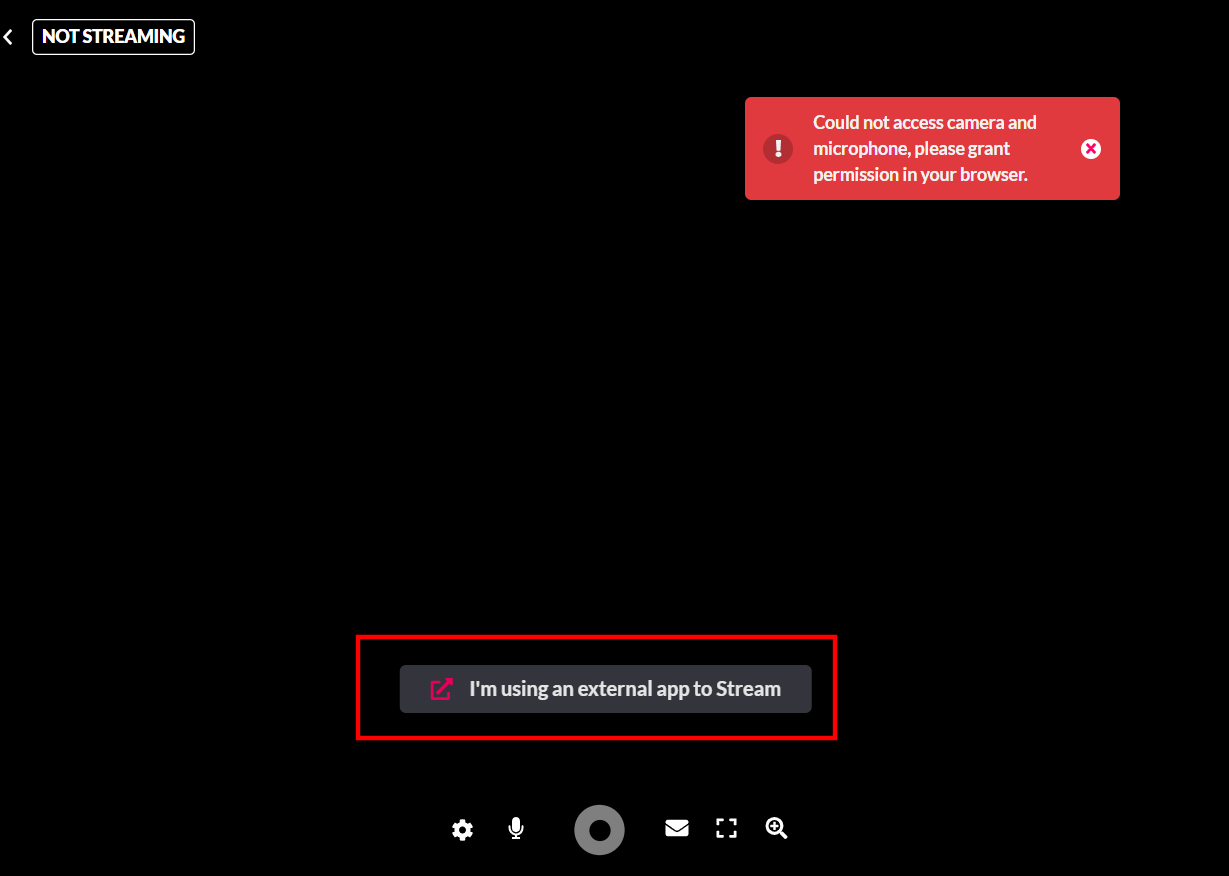
Step 3. Press the “I’m using an external app to Stream” button.
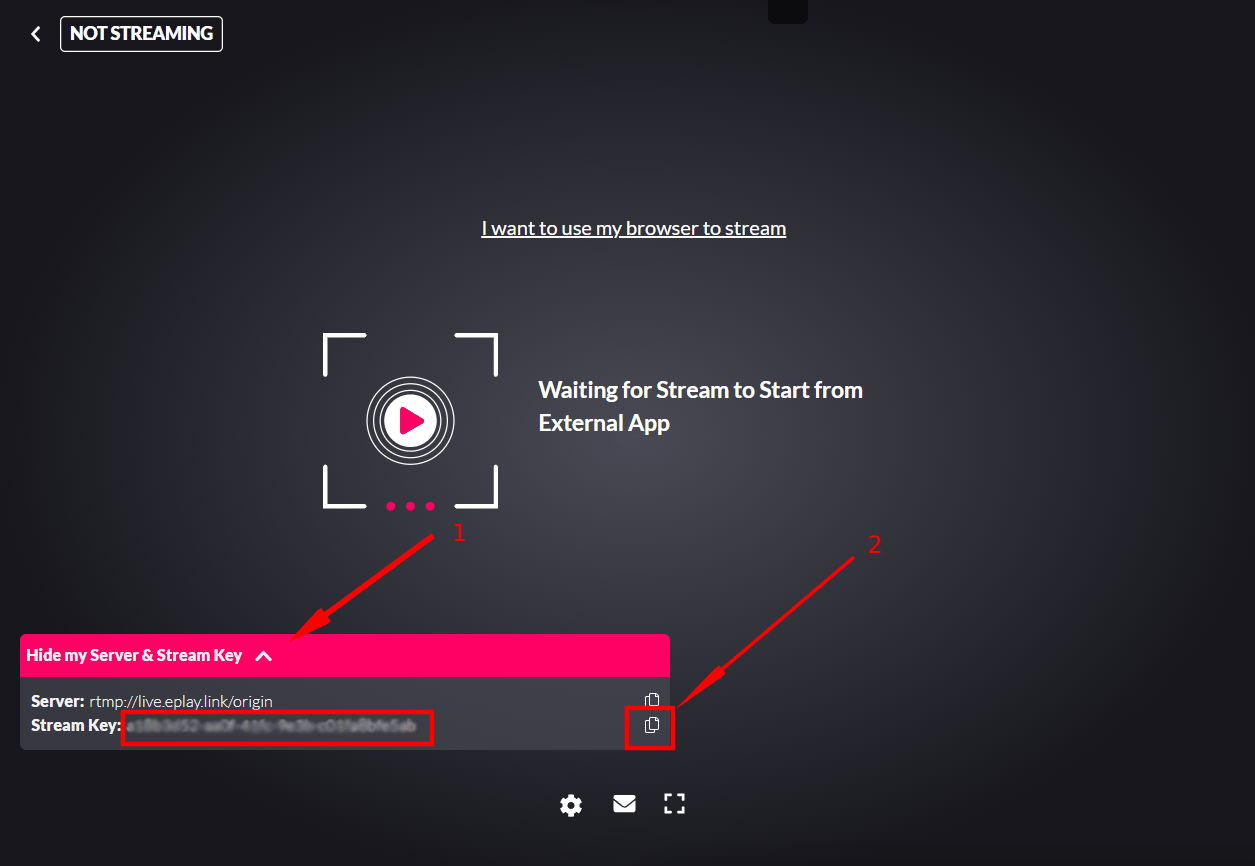
Step 4. Click “Show my Server & Stream Key” (1) and copy your Stream Key (2).
2. Setting up an Eplay channel is Streamster
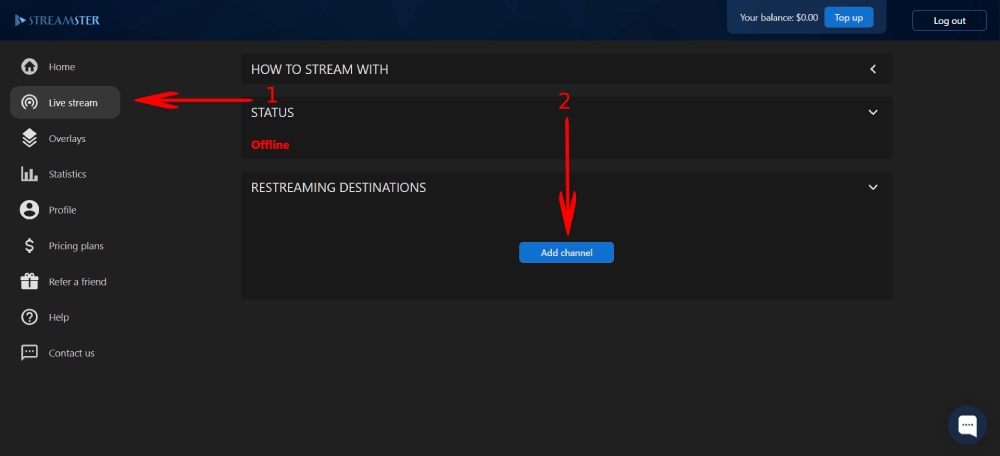
Step 5. In the Streamster web app, open the “Live stream” screen (1) and click the “Add channel” button (2).
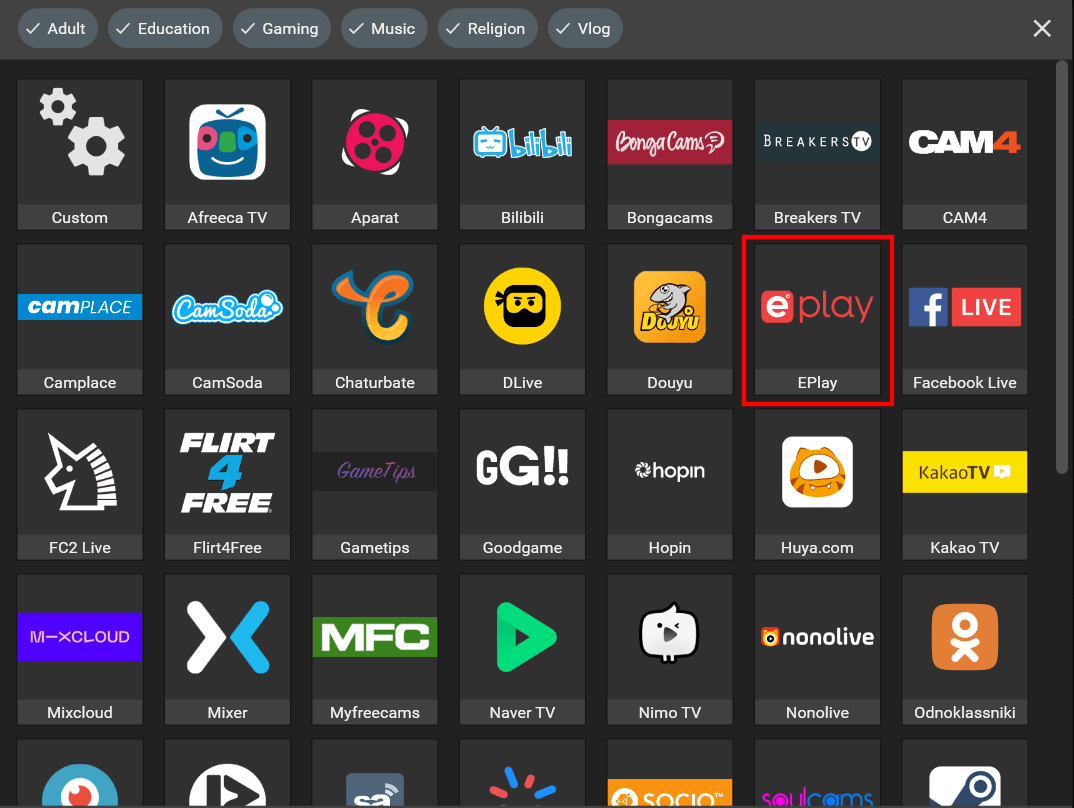
Step 6. Select “Eplay” from the list of channels.
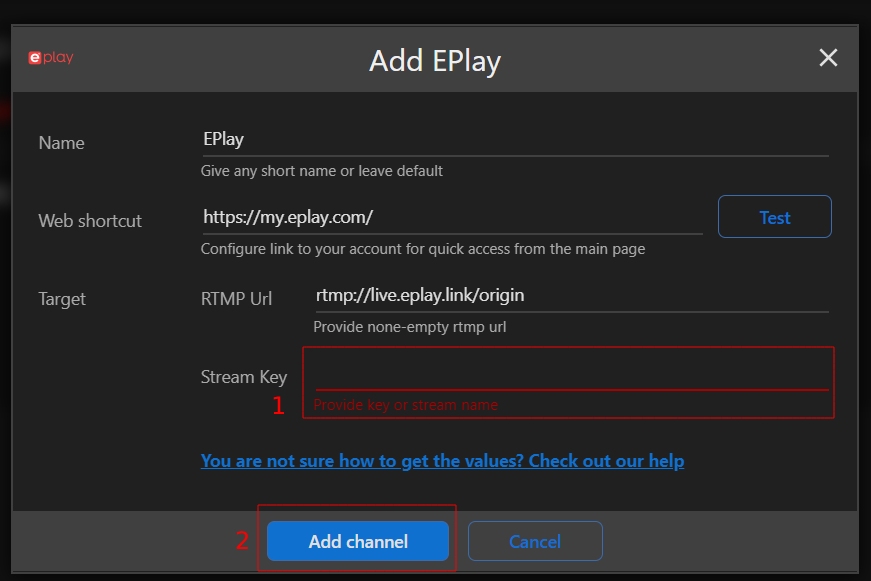
Step 7. Paste your stream key (1) and click the “Add channel” button (2).
Step 8. Start your stream to Streamster server. Learn more.
Step 9. Launch the live stream on the platform.