Web app | YouTube channel
Step 1. Log in to your YouTube account.
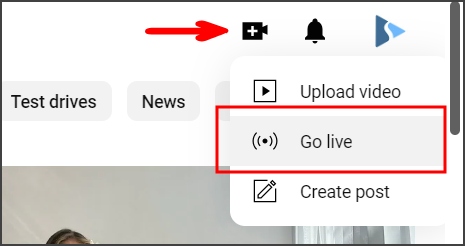
Step 2. Click the “Create” – “Go Live” button in the upper right corner of the website.
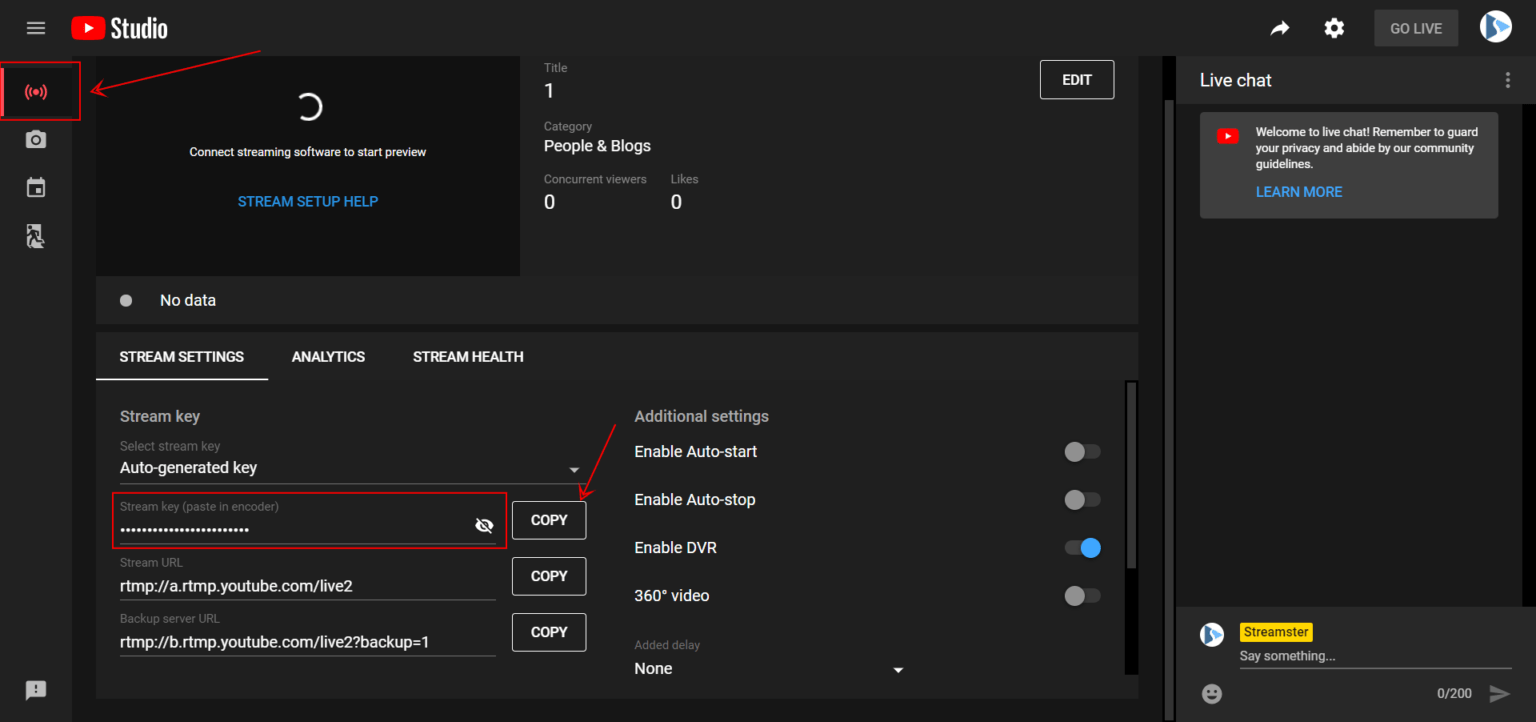
Step 3. Select the “Stream” tab and copy the “Stream Key” input.
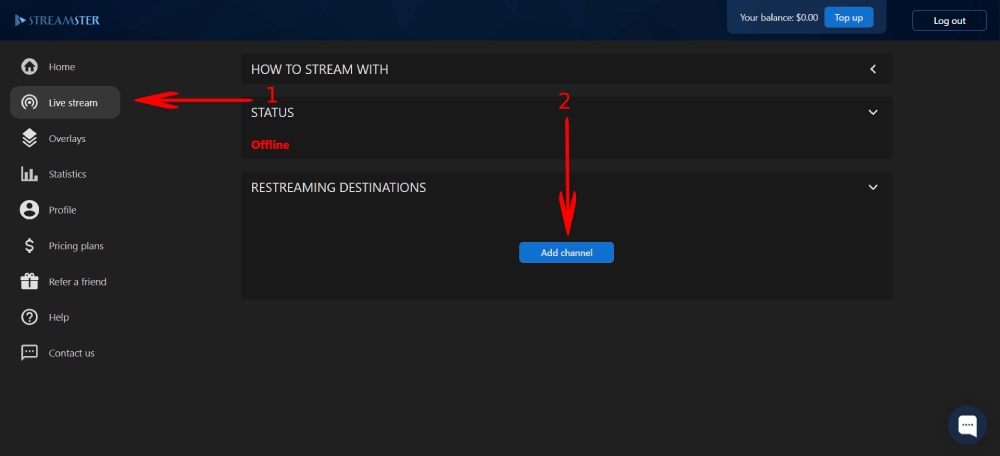
Step 4. In the Streamster web app, open the “Live stream” screen (1) and click the “Add channel” button (2).
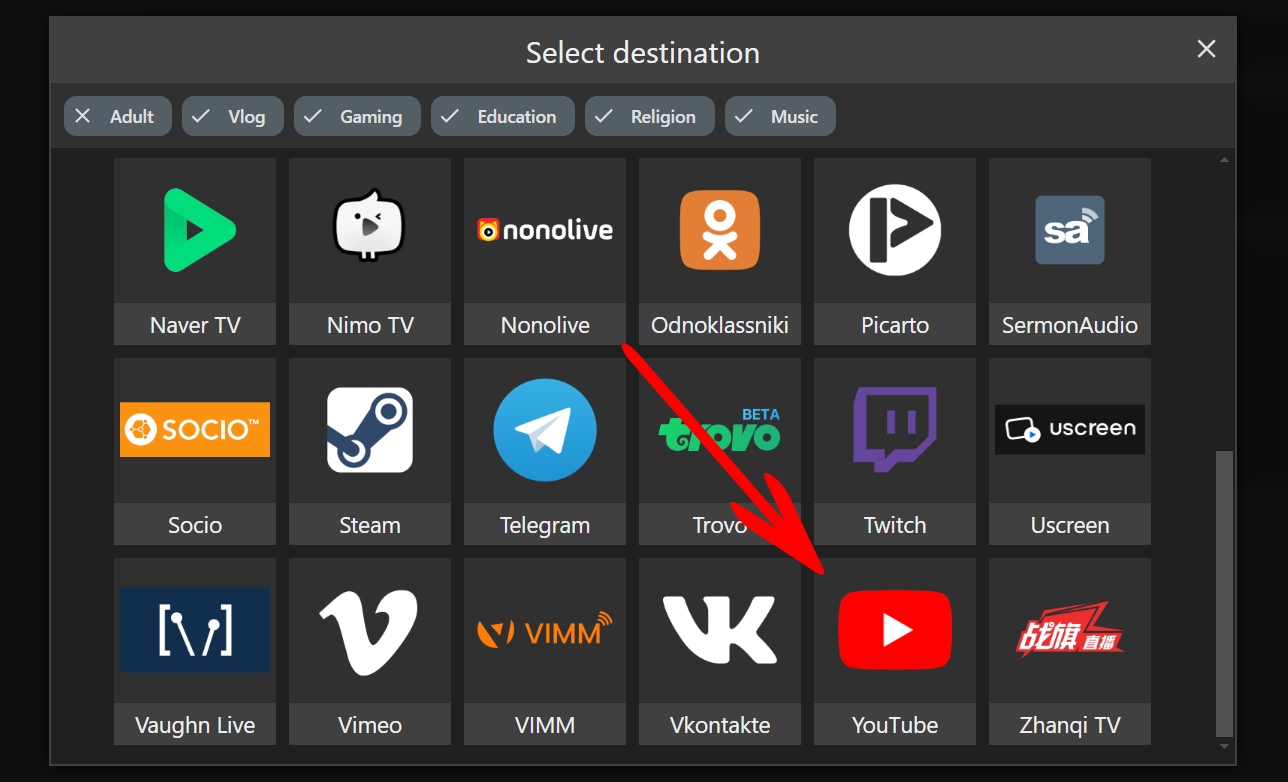
Step 5. Click the “YouTube” icon in the list of streaming channels.
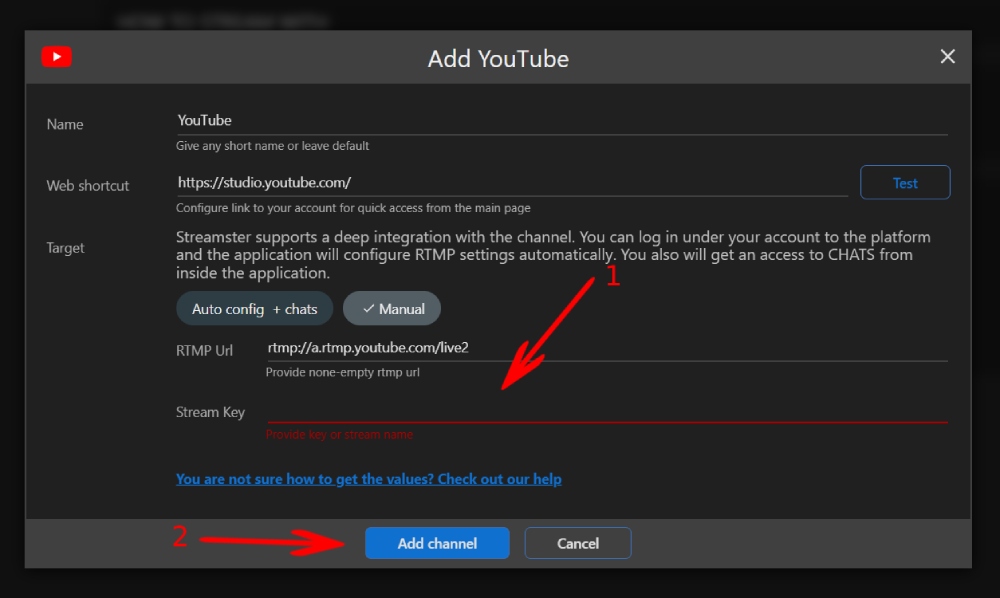
Step 6. Paste your Stream key (1), and click the “Add channel” button (2).
Step 7. Start your stream to Streamster server. Learn more.
Step 8. Start your live stream on the platform.