
Desktop app | SoulCams channel
1. Setting up an external encoder on SoulCams
Step 1. Log in to your SoulCams model account.
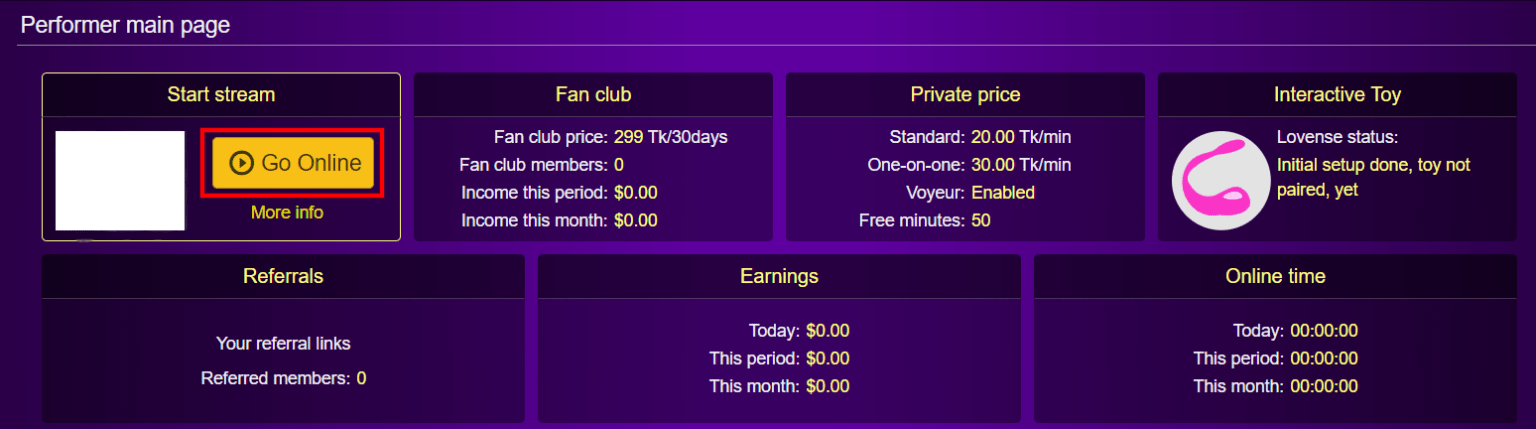
Step 2. Click the “Go Online” button.
Step 3. Click the “Settings” button in the top menu.

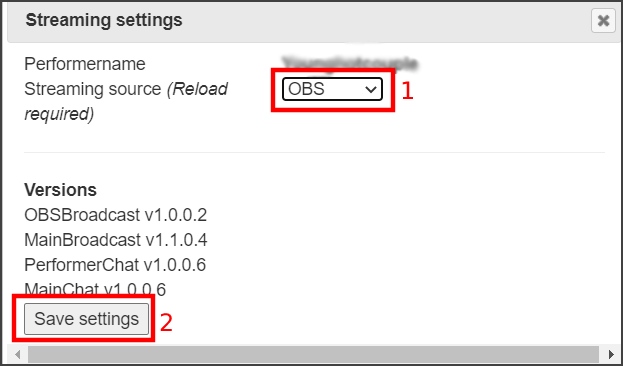
Step 4. In the pop-up window, select “OBS” as a streaming source (1) and click the “Save settings” button (2).
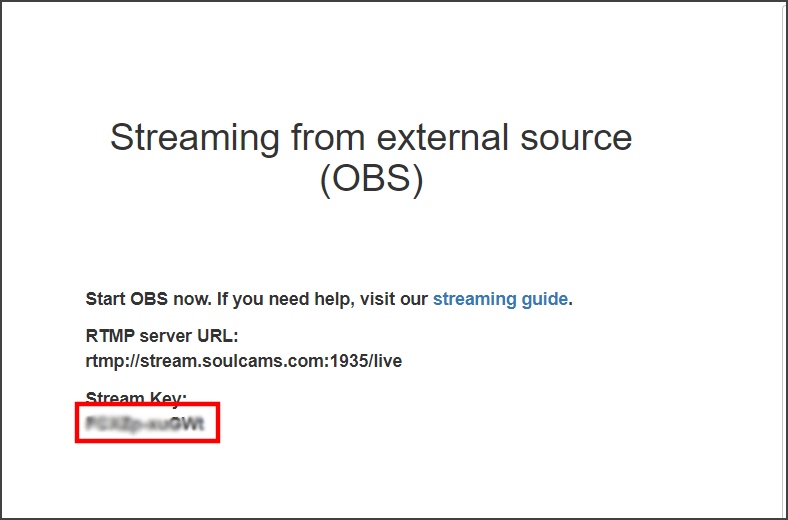
Step 5. Copy your Stream Key.
2. Setting up SoulCams channel in the Streamster app
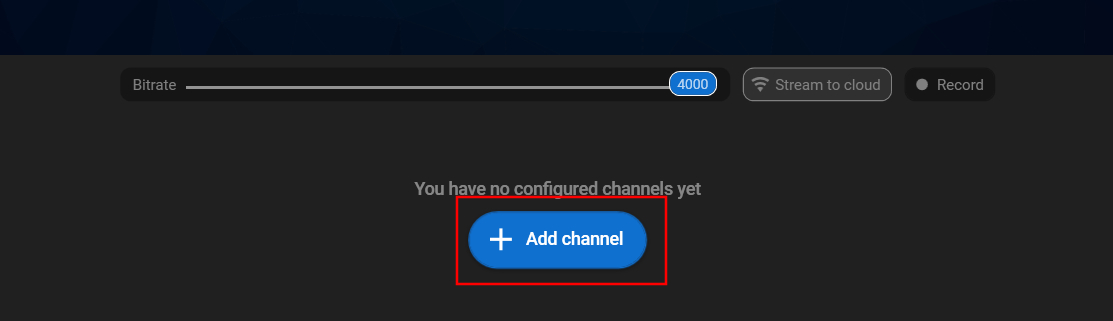
Step 6. Click the “Add channel” button.
Step 7. Select “SoulCams” from the list of channels.
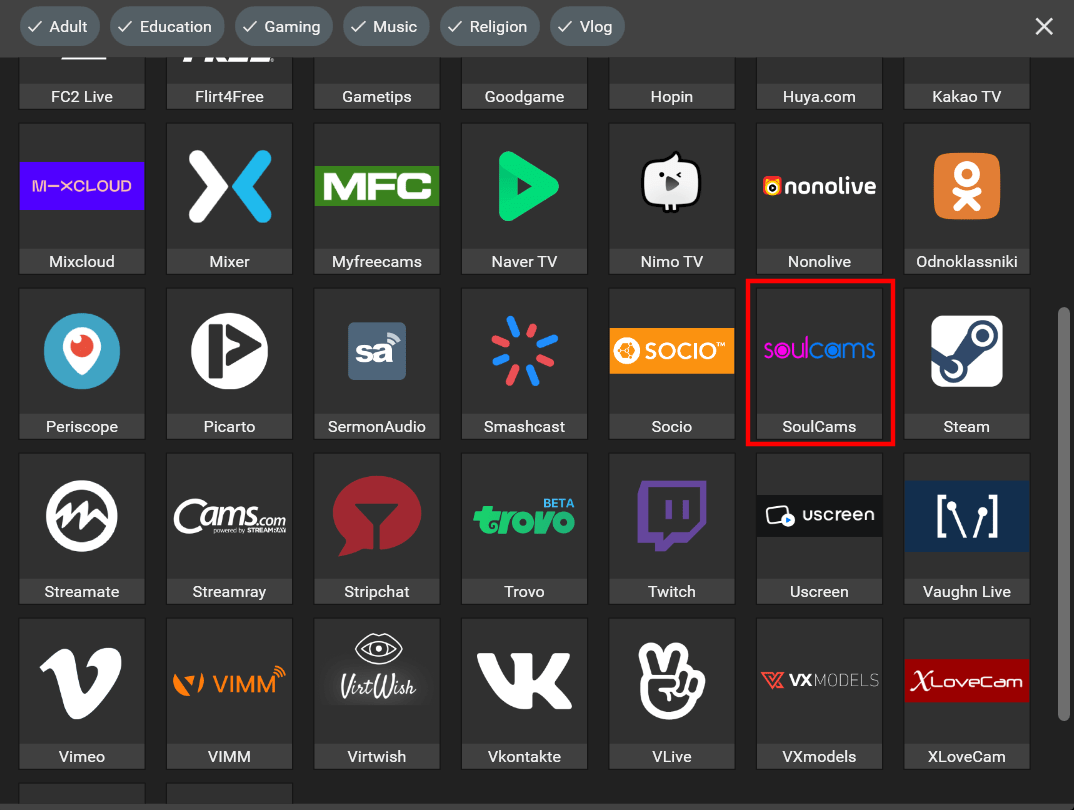
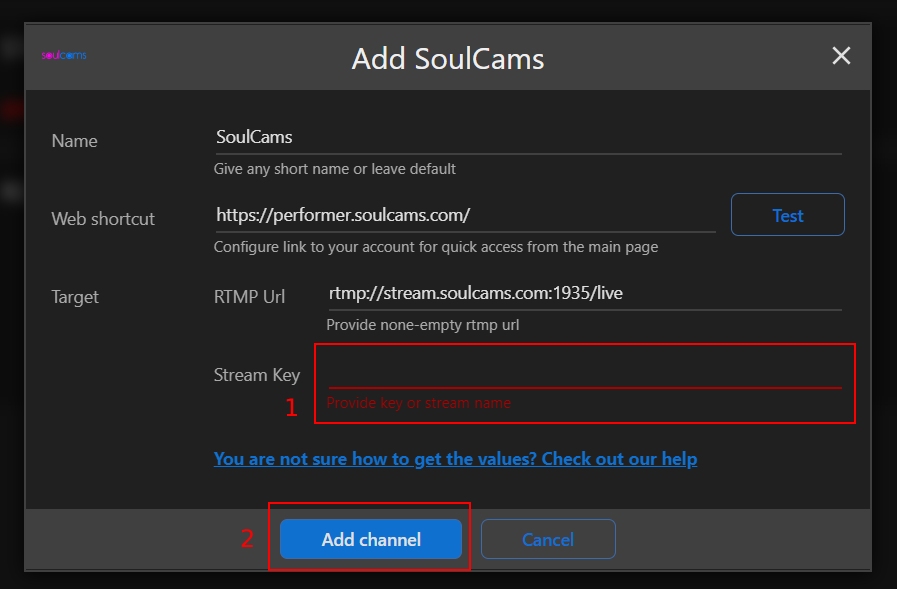
Step 8. Paste your stream key (1) and click the “Add channel” button (2).
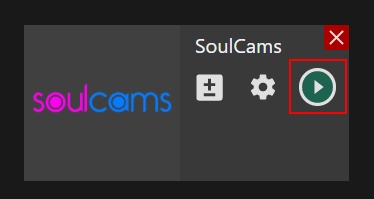
Step 9. Launch the live stream on the platform.
Discover more: Find more useful information about setting up the live stream on cam sites on CAMGEMS by Streamster.