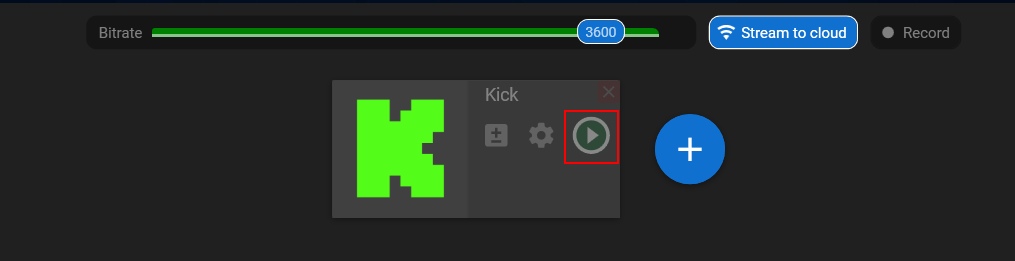
Desktop app | Kick channel
1. Setting up an external encoder on Kick
Step 1. Open the kick.com platform and log in to your account.
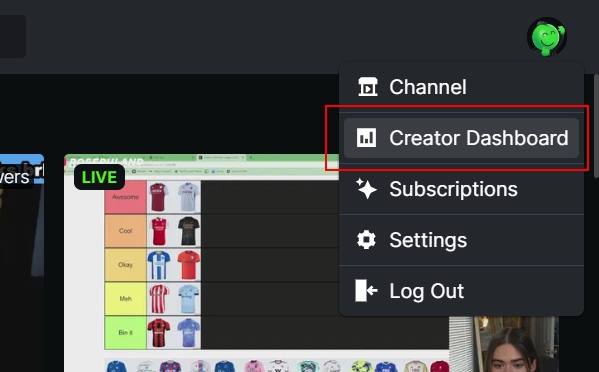
Step 2. Click on your profile picture in the top right corner and choose the “Creator Dashboard” option.
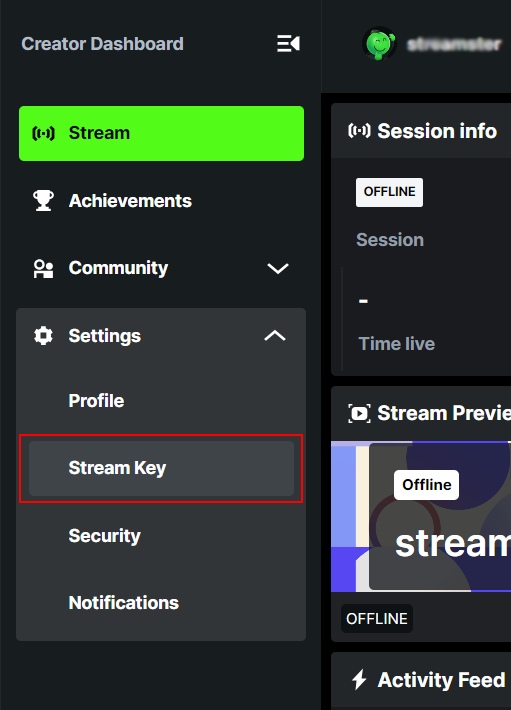
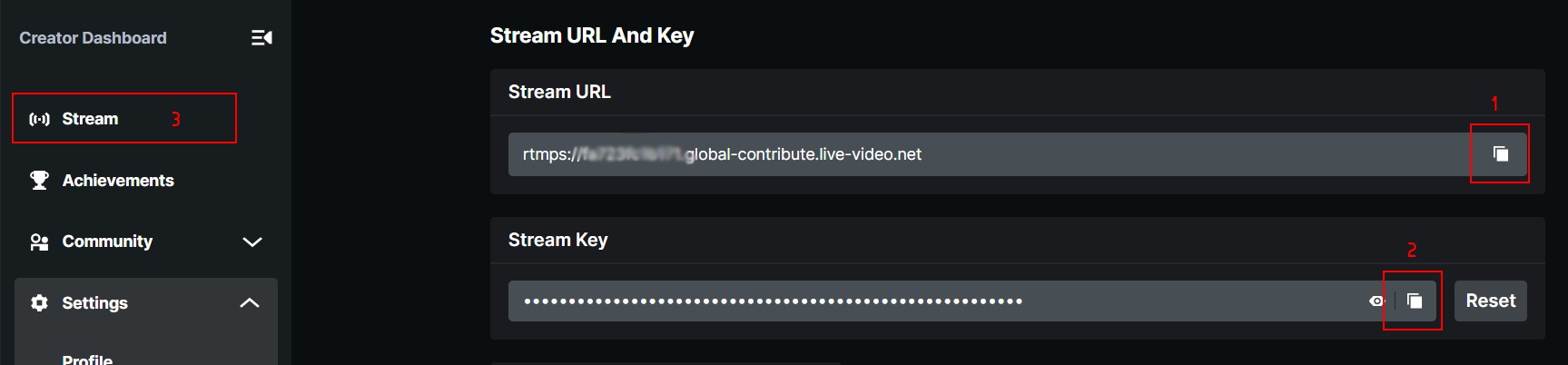
Step 3. In the menu, expand the “Settings” section and choose the “Stream Key” option.
Step 4. Copy your “Stream URL” (1) and “Stream key” (2) to the Streamster app (read the “Set up Kick channel in Streamster” section below).
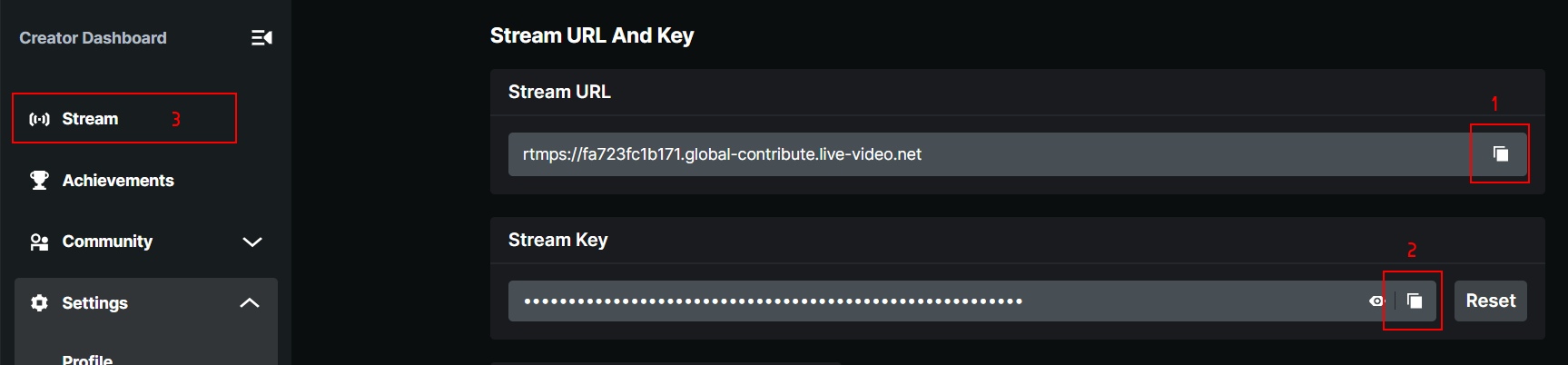
Step 5. Go to the “Stream” screen once the data is copied.
2. Setting up Kick channel in the Streamster app
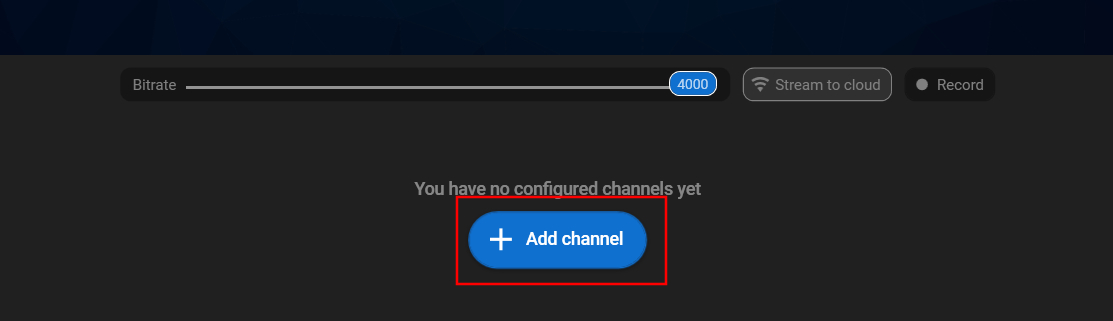
Step 6. Click the “Add channel” button in the Streamster app.
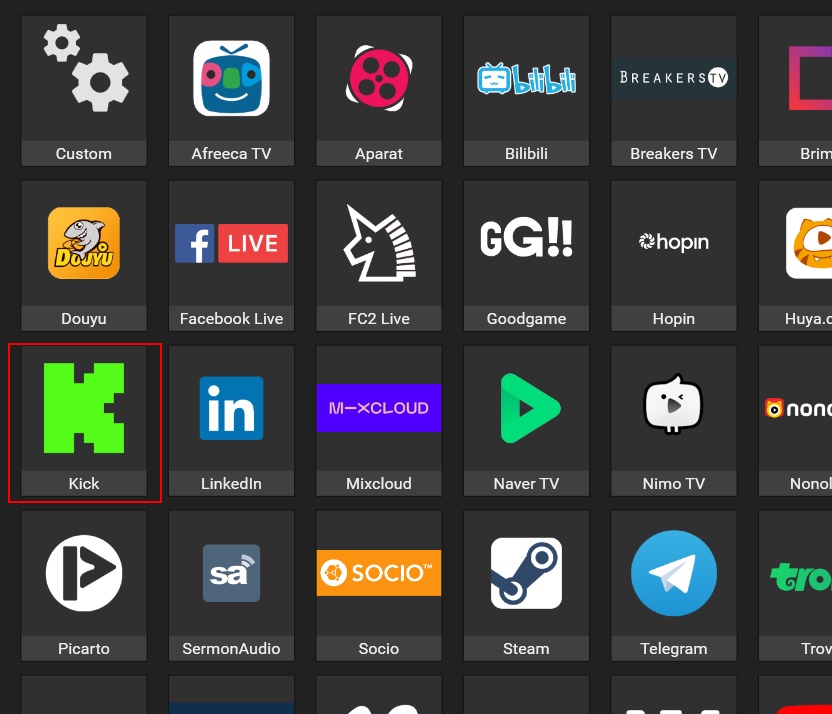
Step 7. Select the “Kick” icon.
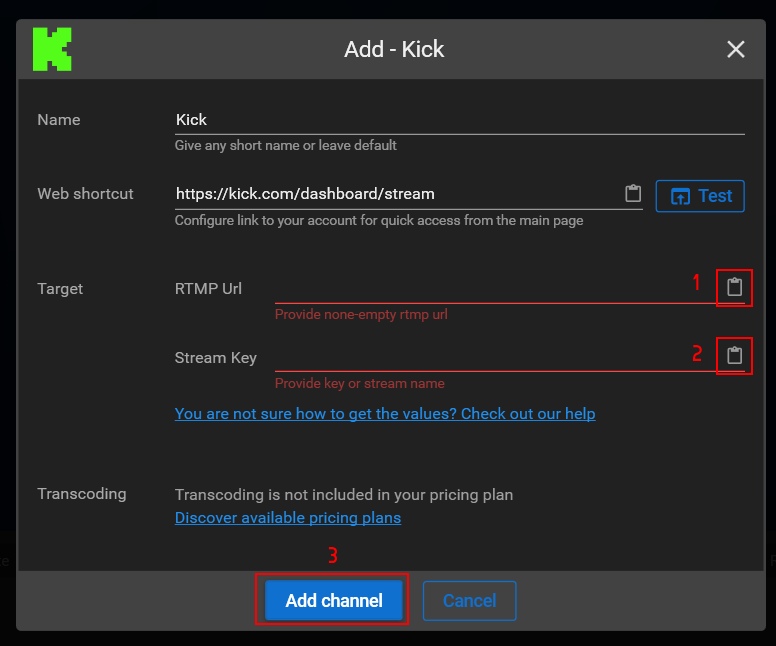
Step 8. Paste the Server URL (1) and Stream key (2) copied on step 1.4. Then click the “Add channel” button (3).
Step 9. Launch the live stream on the platform.