Adding Custom Watermark to a Video
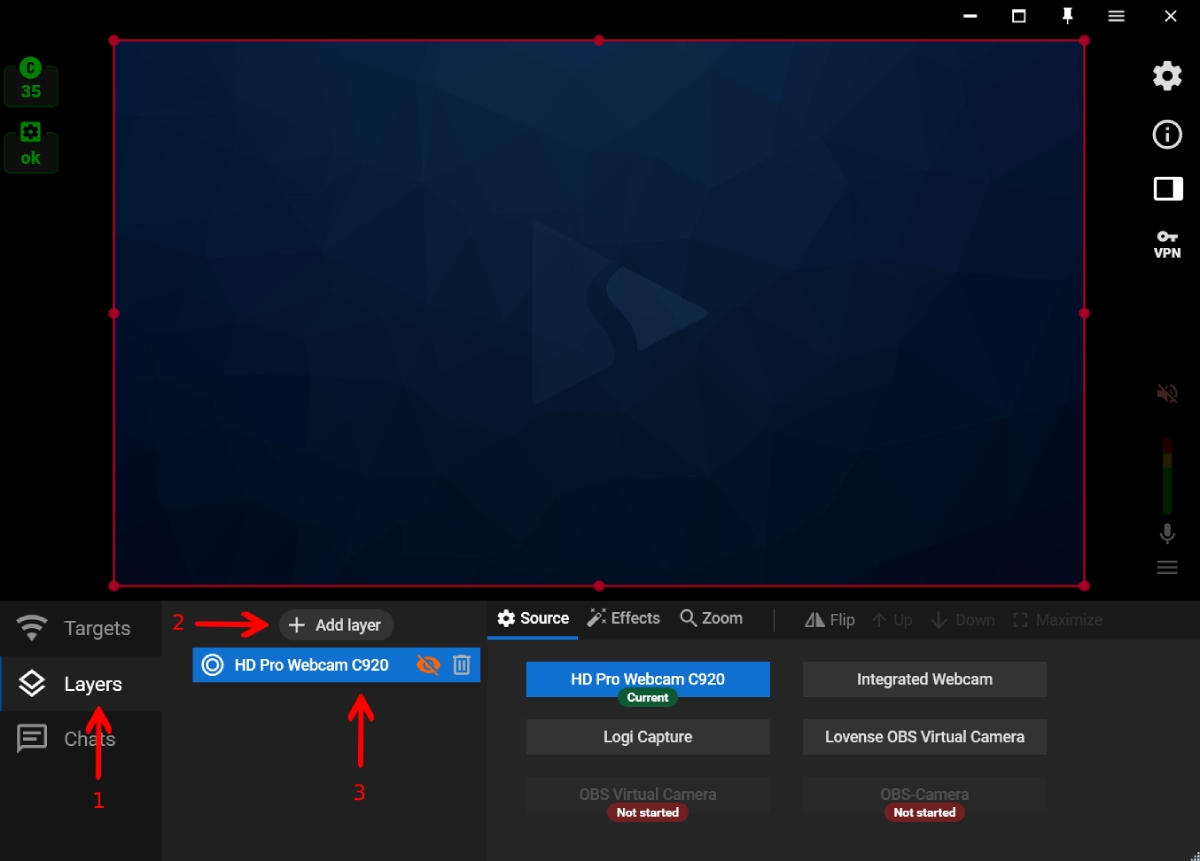
1. Open the “Layers” tab (1). Create a new layer by clicking the “+ Add layer” button (2) or select one of your existing web camera layers (3).
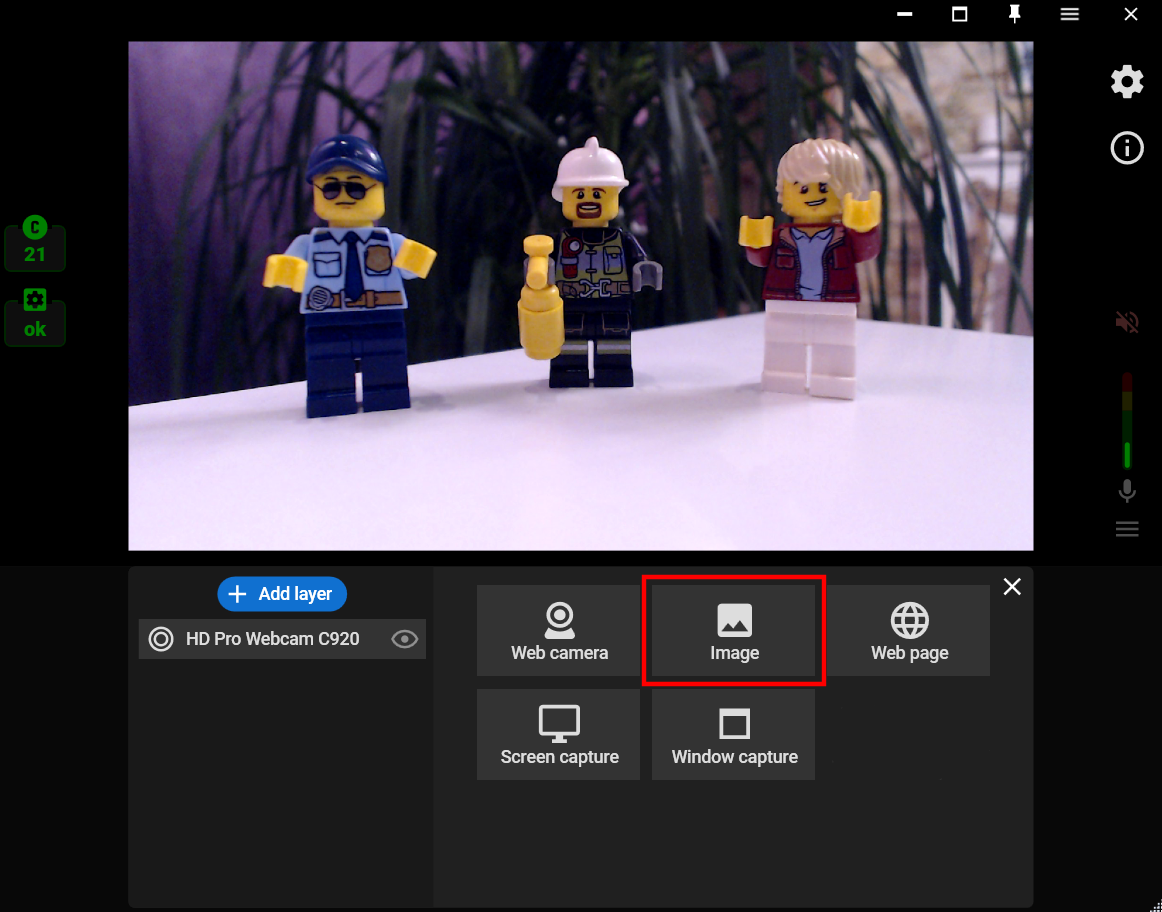
Step 2. Click the “Add layer” button again, choose the “Image” source from the list, and select the needed image on your PC.
Step 3. Change the image position and size with your mouse.
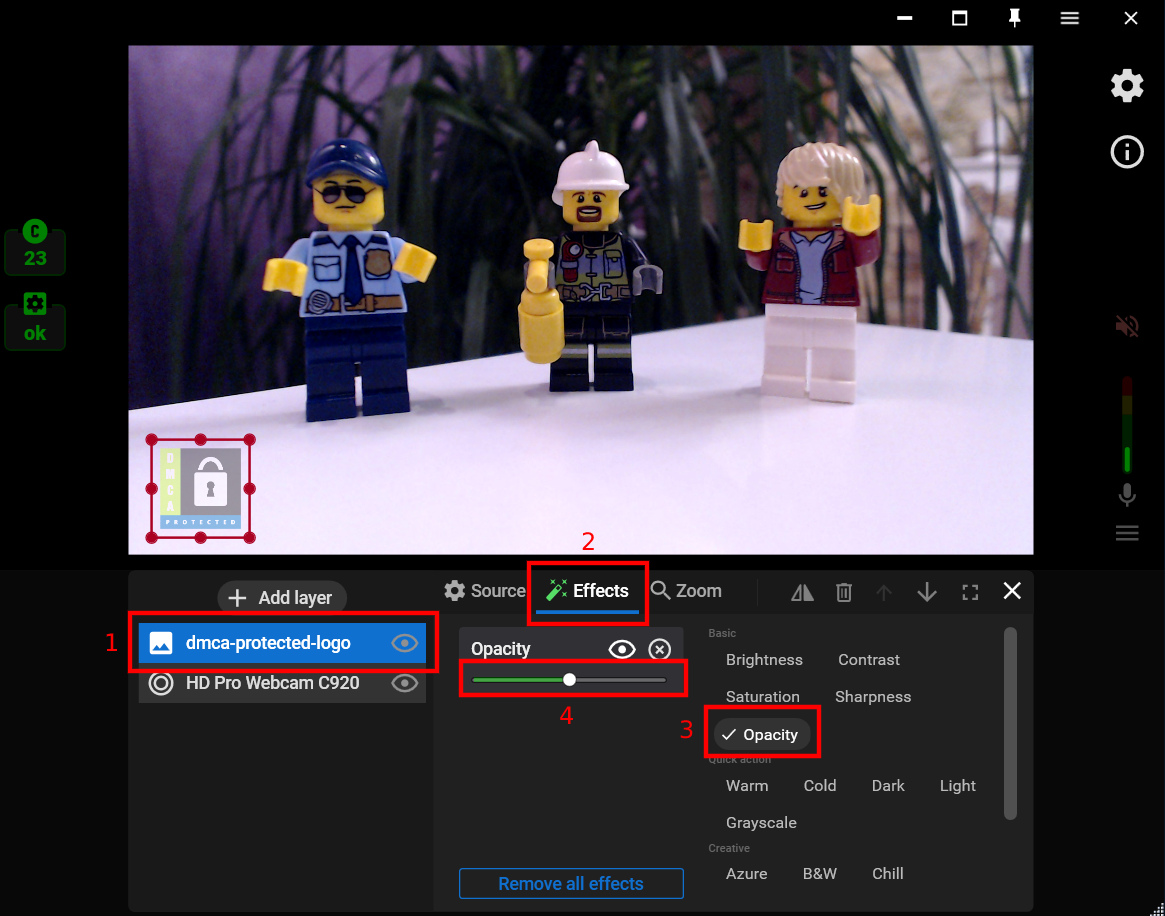
Step 4. If you want to make your watermark transparent, choose the image layer (1), click on the “Effects” tab (2), choose the “Opacity” filter, and change the opacity level (4).